Step by step
-
Log in to your account
Sign in to your Qwizeen.io/login/ administrator account using your login credentials.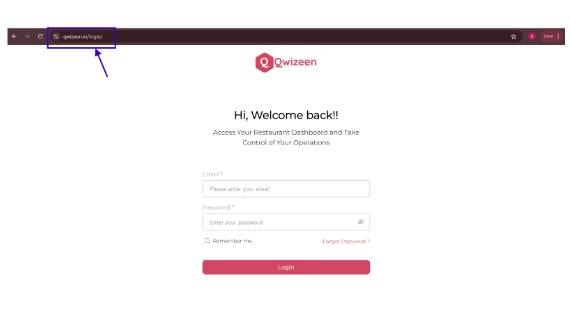
-
Access Roles and Permissions Settings:
Once logged in, locate and click on the gear Icon which will display the options accordingly. > Click on the drop down for “Team” > select “Roles”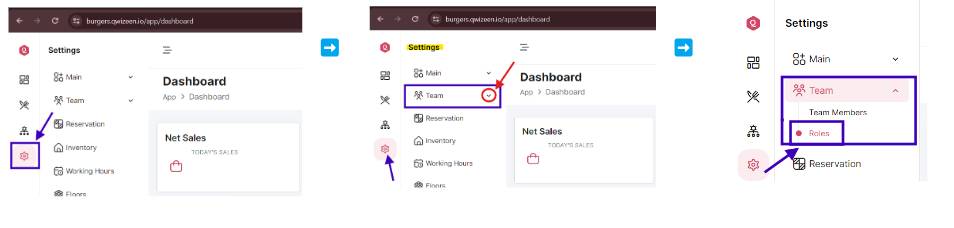
-
Review Default Roles
Qwizeen.io will likely offer default roles such as “Admin,” “Account Owner,” “User,” “waiter”. Review these roles and their permission descriptions to understand how they are initially configured, by clicking on the name of each.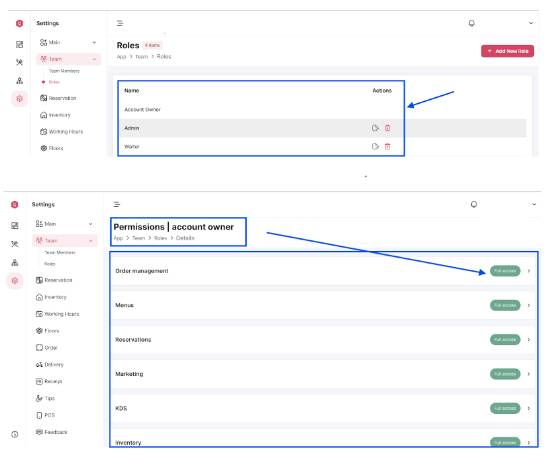
-
(Optional) Create Custom Roles
If the default roles don’t fully meet your needs, you can create your own custom roles. This will allow you to define specific roles with specific permissions based on your team’s functions and responsibilities.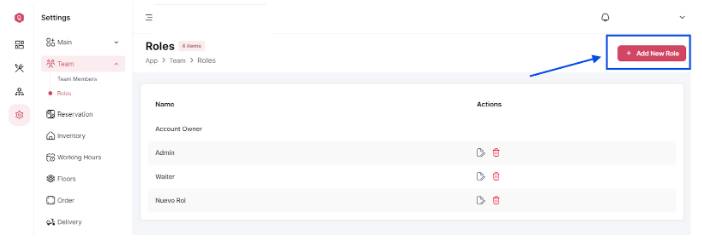
-
Assign permissions to roles
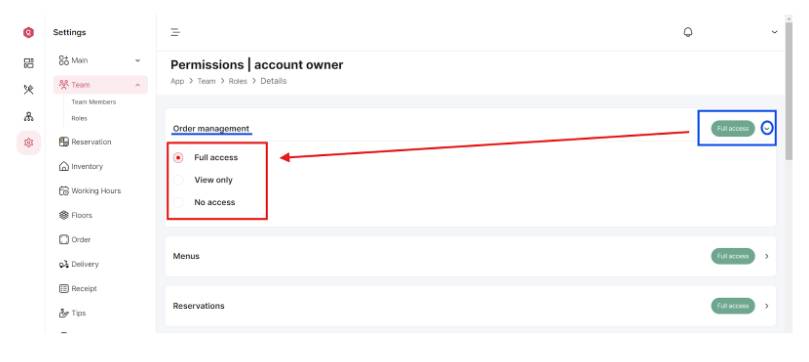
For each role, select the permissions you wish to assign. These permissions may include access to certain administrative functions, the ability to create and edit content, manage users, etc.Click on the role accordingly (“Order Management”) > click on the drop down next to the permission (“Full access) to change this.
-
Assign role to Staff Members
Once you’ve configured roles and permissions accordingly, assign the appropriate roles to each staff member. This can be done by selecting the desired role for each user in the roles and permissions settings.
– locate and click on the gear icon > Click on the drop down for “Team” > select “Team members” > click on the “edit” icon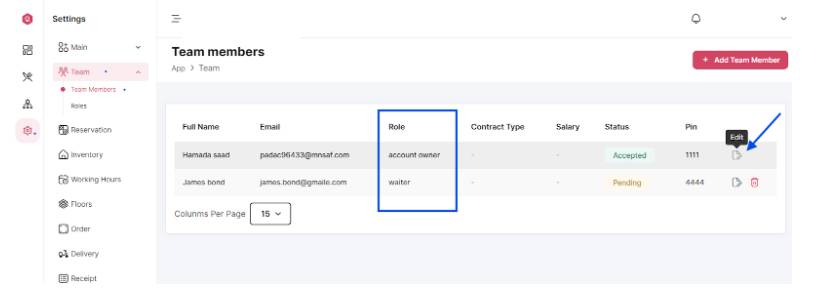
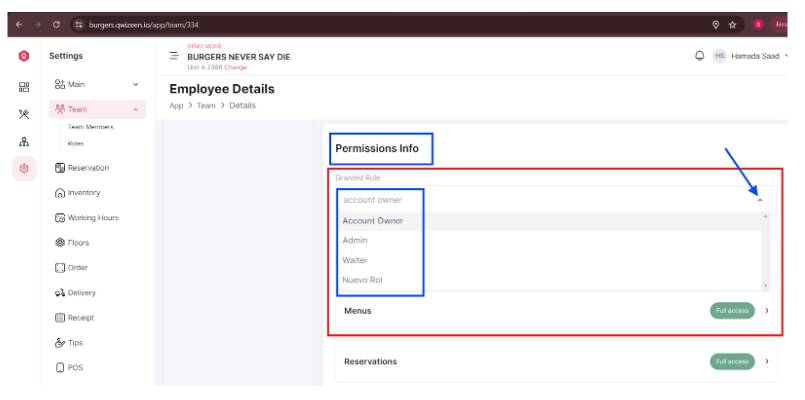
Scroll down to “Permissions info” > Click on the drop down arrow next to “Granted role” the list of roles to pick from will display.
-
Verify the configuration
After assigning roles to staff members, double-check that the configuration has been applied correctly. You can do this by reviewing the list of users and their assigned roles within the roles and permissions settings. -
Adjust as necessary
If at any time you need to adjust staff roles and permissions, simply repeat these steps and make the necessary changes in the settings. -
Train Your Staff
Following the configuration of roles and permissions, ensure to provide training to your staff regarding their specific roles, responsibilities, and the permissions they hold within the platform.
Congratulations! You have successfully configured roles and permissions for staff on Qwizeen.io, enabling you to efficiently manage access and functions within the platform.
With these straightforward steps, you can seamlessly establish roles and permissions for staff on Qwizeen.io, ensuring smooth access and effective platform management.
The jalwaregisterlink was actually surprisingly easy to use. I was expecting a headache, but it was a breeze to get signed up and ready to play. You need a link to sign up?: jalwaregisterlink
Yo, 2jgamedownload is my go-to for cracked games! Seriously, I’ve found some real gems there. Downloads are pretty fast too. Check it out 2jgamedownload, you might be surprised.
Hey, just tried out 365slotvip! Gotta say, the slots are pretty sweet. Had a decent run on a few of them. Feels like a fun place to hang out and maybe win a bit. Check it out: 365slotvip
Bet365 is a classic Bookie. I like it because it is very easy to use. However, you need to know more about Goldenchips. You can check a lot of information by clicking here: 5goldenchipsbet365
Heard about Fortunetigerapp, and it does not hold back. It’s nice playing on the go with this app. Get it here: fortunetigerapp.
Alright, VP777bet… decent site. Fast payouts are key. The selection of slot games could be better I think but overall not bad! Check them out here: vp777bet
Just stumbled upon 199bet1.com. Looks pretty standard. Nothing really pops out. Maybe worth a look. Should I risk my money?: 199bet1
Cassino ou Casino, it’s all the same fun! This site seems to cater to both Portuguese and English speakers, which is a nice touch. Plenty of games to keep you busy! Click here cassino ou casino.
Okay, I gotta admit, Classic Slots 777 is a guilty pleasure! It’s simple, yeah, but sometimes you just want that old-school Vegas vibe. I always hit up classic slots 777 when I’m feeling nostalgic.
Выбирая надежную платформу, стоит обратить внимание на хостинг для хрумера, который обеспечивает бесперебойную работу.